What the Engine is
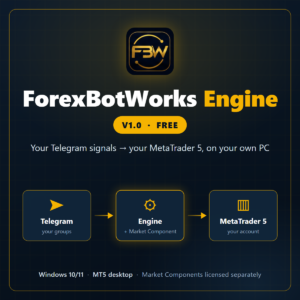
The ForexBotWorks Engine is a Windows program that runs on your own computer or VPS. It connects two things you already have:
- your Telegram account, which is a member of the signal groups or channels you follow, and
- your MetaTrader 5 terminal, logged in to your trading account.
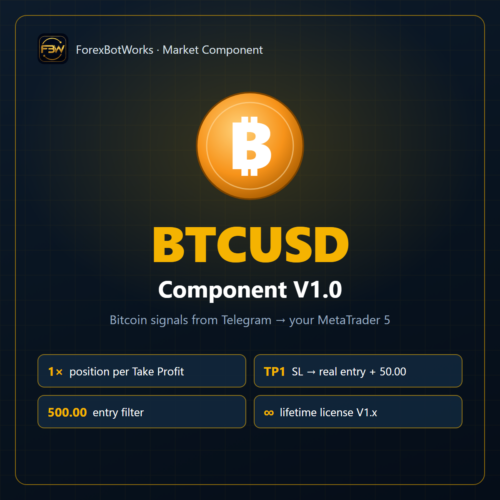
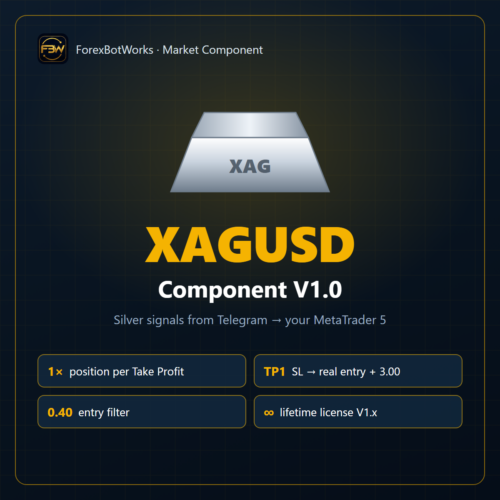
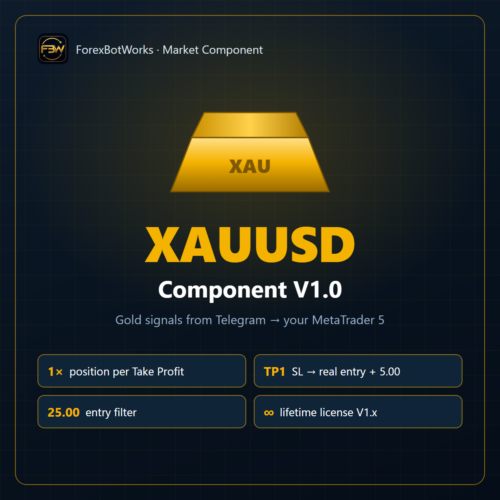
The Engine itself does not trade. It provides the platform for the Market Components: the connections, the Dashboard, the logs, the license checks and the updates. A Market Component (XAUUSD, XAGUSD, BTCUSD…) is a separate product. It recognises the signals of its market and opens and manages the trades. Without a Component the Engine runs, but it places no orders.
How it works
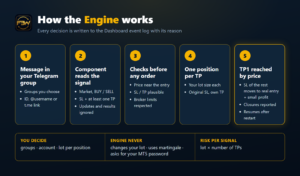
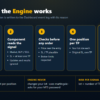
- A message arrives in a Telegram group you connected to a Component.
- The Component reads it. It accepts only a complete signal: market, direction (BUY/SELL), Stop Loss and at least one Take Profit. Updates, results (“TP1 hit”), comments and incomplete messages are ignored and written to the log with the reason. You can test any message beforehand in the Telegram Signal Checker.
- Checks before any order.
- The current price must be close to the signal entry.
- SL and TP must be on the correct side and at a plausible distance.
- TPs the price has already passed are skipped.
- The broker’s minimum stop distance and volume rules are respected.
If a check fails, no order is sent and the reason is shown in the log.
- Execution. One market position per Take Profit, each with the lot size you set. A signal with 4 TPs opens 4 positions, each with the original SL and its own TP.
- After TP1. When the price really reaches TP1, the Stop Loss of the remaining positions of that signal moves to the real entry price plus a small offset in profit. A TP1 position you close yourself does not count as TP1.
- Until the end. Every closed position is reported with its reason (TP, SL, manual) and its profit. Open signals are saved, so monitoring continues after a restart of the Engine or the PC.
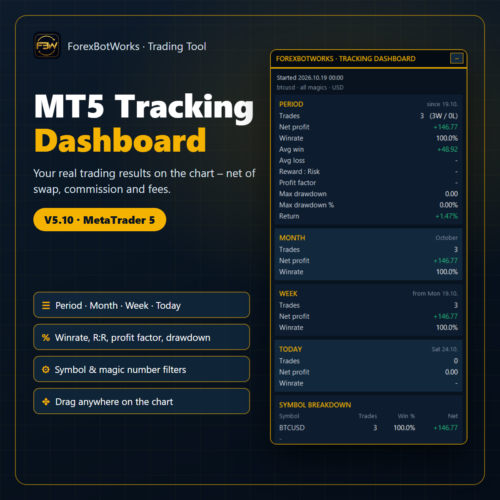
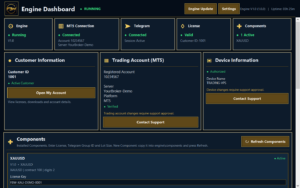
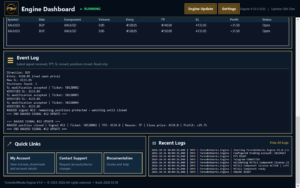
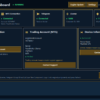
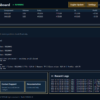
The Dashboard shows the connections (MT5, Telegram, licenses), every Component and its status, the open positions and an event log of each signal. That log lists the message received, what was read, the positions opened, TP1, the SL move and the closures.
What you decide
- Which Telegram groups or channels a Component follows. You choose and trust the signal provider.
- Which MT5 account is traded, demo or live. It is linked to your license in My Account.
- The lot size per position. Your risk per signal is lot size × number of TPs. Example: 0.05 lot and 4 TPs = 0.20 lot in total on one signal.
- The broker symbol, only if your broker uses an unusual name. Common names (GOLD, XAUUSD.pro, XAUUSDm…) are found automatically.
- When the Engine runs. Signals that arrive while the Engine or your PC is off are not traded later.
- Any manual action in MT5. You can close or change positions at any time. The Engine never reopens what you closed.
What the Engine does not do
- It does not create signals and does not choose providers. It executes what your provider publishes, within the rules above.
- It does not change your lot size, and it does not use martingale, grid, averaging or recovery trading.
- It does not trade other symbols and does not touch positions it did not open. It manages only positions with its own Component ID.
- It does not log in to MT5 or switch accounts, and it never asks for your MT5 password. If MT5 is logged in to another account than the registered one, it refuses to trade.
- It does not process your private chats. It uses only messages from the groups you connect to a Component.
- It does not re-read edited messages. A signal is read once, when it is posted.
- It is not financial advice and does not promise profit.
What we are responsible for
- The software does what is described here. The signal rules are public, and the Signal Checker uses the same recognition rules as the Components.
- Transparency. Every decision (signal accepted or ignored, order sent or refused, SL moved, position closed) is written to the Dashboard log with its reason.
- Fixes and updates for all V1.x releases. Updates are signed by ForexBotWorks and can be installed from the Dashboard, or automatically when no signal is open. Your settings, Telegram login and trade state are kept.
- The license service. If our server is briefly unreachable, the Engine keeps working on a signed offline confirmation for up to 24 hours.
- Support with installation and setup, and with account or device changes under the license terms.
What stays your responsibility
- Your trading results and your risk. Trading leveraged products can lose more than a signal suggests.
- The quality of the signals and the choice of provider.
- Your broker: execution, spreads, slippage, symbol settings and trading hours.
- The environment: a PC or VPS that stays on, a stable internet connection, MT5 open and logged in, and Algo Trading allowed in MT5.
Your data
- Everything runs on your PC. Your Telegram login (session) and your settings are stored only in the Engine folder.
- The Engine contacts forexbotworks.com only for license checks and update checks. A license check sends the license key, the MT5 account number, the platform, an anonymous device ID and the software versions. No passwords and no trade data are sent.
Requirements
- Windows 10 or 11 (64-bit) on a PC or VPS
- MetaTrader 5 desktop terminal, at any broker
- A Telegram account that is a member of your signal groups, plus a Telegram API ID and API Hash (free, from my.telegram.org; the setup guide shows how)
- At least one Market Component with its license for real trading
Installation in short
- Unzip the Engine to a folder you keep, for example
C:\ForexBotWorks. - Open MT5 and log in to your trading account.
- Start Start ForexBotWorks.vbs. Windows may ask before the first start of a new program: choose More info → Run anyway.
- The Dashboard guides you through the first setup: Telegram login and MT5 account.
- Add a Component: unzip it into
engine\components, press Refresh Components, then enter your license key, Telegram group and lot size.
We recommend running every new setup on a demo account first, until you have seen a few complete signals in the event log.
Version V1.0 · Free · One Engine per installation folder · Components are licensed separately (lifetime, 1 trading account + 1 device per license).